Powered by Cycle
Powered by Cycle

Freshly Served

What did we Ship recently?

Sep 15, 2025

New Feature
POS

Short description

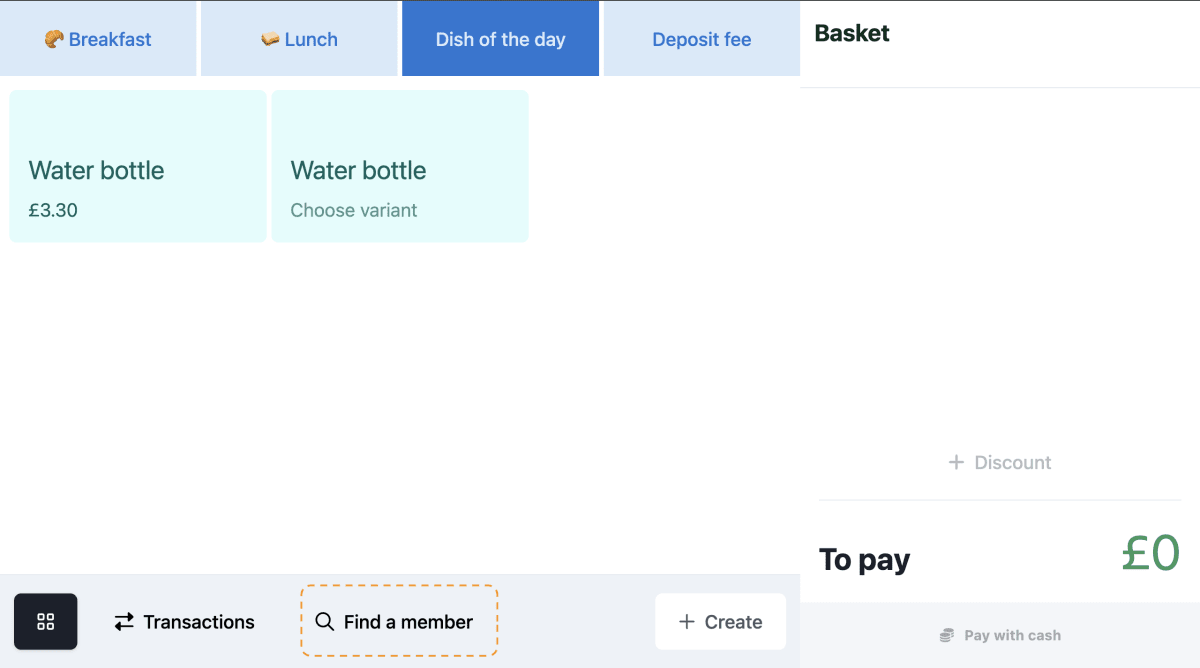
We’ve introduced a new 🔍 Find a Member feature in POS attended till that allows operators to quickly search & authenticate users directly from the Sell page using either their name or employee card ID.

Why does it matter

This feature gives operators a fallback option to authenticate a user when they don’t have their employee card or QR code available. It ensures that personalised service is always possible — for example, when handling hybrid billings or managing specific allergen needs that are only visible once a user is authenticated.

What’s new?

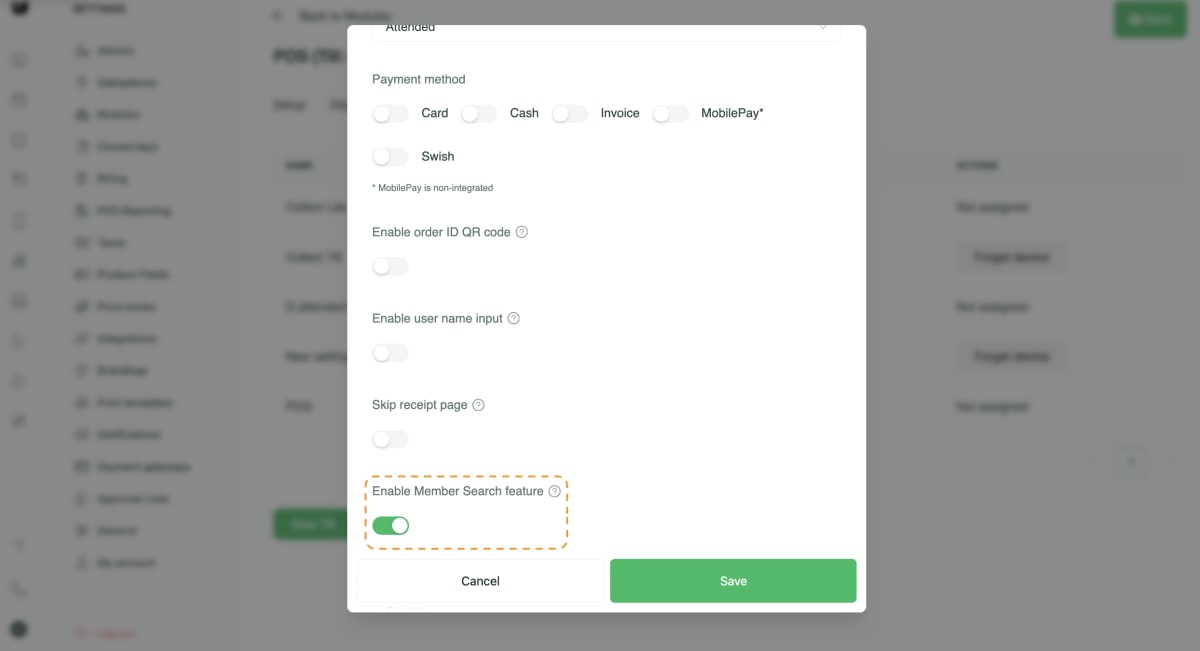
  • A new Enable Member Search feature configuration available in Admin till settings.

  • When enabled, a 🔍 Find a Member option appears in the footer of the POS Sell page.

  • Operators can search for any user of the salesplace by name or employee card ID.

  • Available only for Attended till.

How to use it?

  • Enable Enable Member Search feature in the Admin till settings for your till.

  • On the Sell page, tap 🔍 Find a Member in the footer.

  • Enter the name or employee card ID to locate the user.

  • Select the user to authenticate them and continue the sale as normal.

Aug 12, 2025

POS
Reporting
Enhancement

Short description

We’ve introduced a new column in the POS device’s Transactions Overview that automatically records the full name of any user who authenticates on the till during their purchase, using a supported method such as a staff card or QR app code.

Why does it matter

This update enables operators to instantly identify the buyer and their basket contents, making transaction troubleshooting and processing refunds faster and more accurate.

What’s new?

  • A dedicated Auth.User column in the POS Transactions Overview.

  • Automatic capture of the authenticated user’s name during checkout.

  • Support for multiple authentication methods (staff card, QR app code).

How to use it?

  • Ensure customers are using their authentication method (card or QR app code) before processing a sale.

  • Complete the transaction as normal.

  • The authenticated user’s name will appear in the new column within the Transactions Overview.

New Feature
Admin
Reporting

Short description

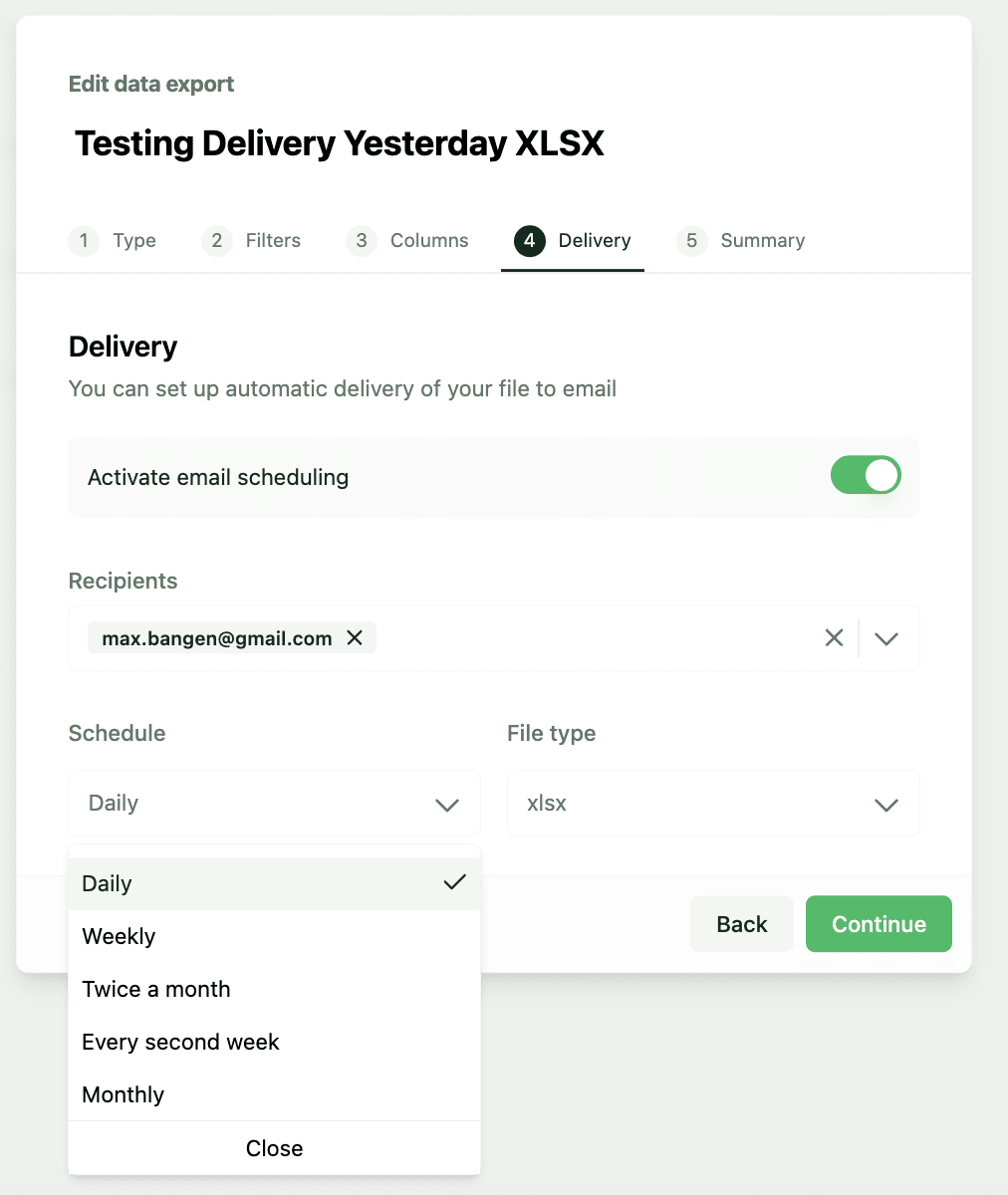
Admin users can enable scheduled delivery of their data exports via email in the Delivery step in the Data Export configuration wizard.

Why does it matter

Adding in Delivery improves the user experience by

  1. Allowing users to automatically receive and deliver reports to the right stakeholders

  2. Reduces the need for users to go in to Kanpla to export the report

What’s new?

Users can find a new step Delivery when configuring their Data Export.

Configuiring the Delivery will send the file at midnight (12am) of the scheduled frequency. This is considering the timezone in which the export configuration was set up. I.e. if the user set up a new data export in New York, US (GMT-4), then the export will also be delivered at 12am New York time (GMT-4).

The file will include data based on the Filters and Columns configured.

Here users can

  1. Activate the delivery of exports via email

  2. Add emails for Recipient that should received the export

  3. Set the Schedule to deliver reports on daily, weekly, twice a month, every second week and monthly

  4. Choose the File type to be delivered as CSV or XLSX

How to use it?

Go to Data Export > Create a new export > Navigate to Columns > Go to Delivery and start entering the details for the automated delivery.

Once activated, the report will be sent every night at 12am (midnight).

Schedule frequency explained

  • Daily: Delivers the file daily

  • Weekly: Delivers the file every Monday

  • Twice a month: Delivers the file on 1st and 15th every month

  • Every second week: Delivers the file on Monday every second week

  • Monthly: Delivers the file 1st every month

New Feature
Admin
Enhancement
School Product

Short description

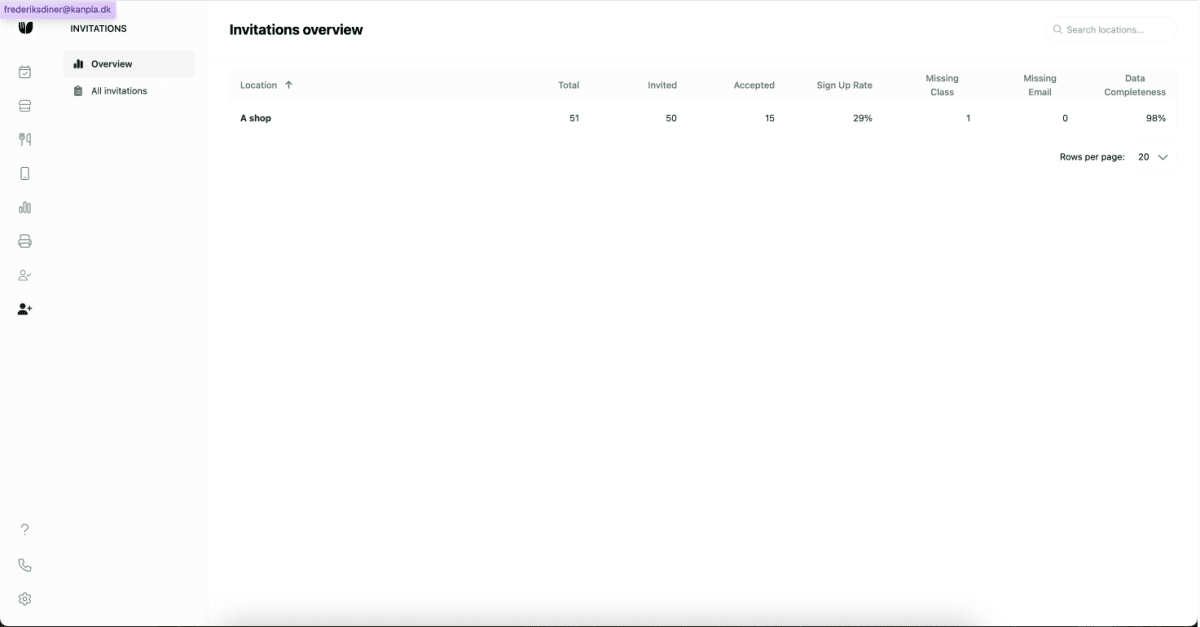
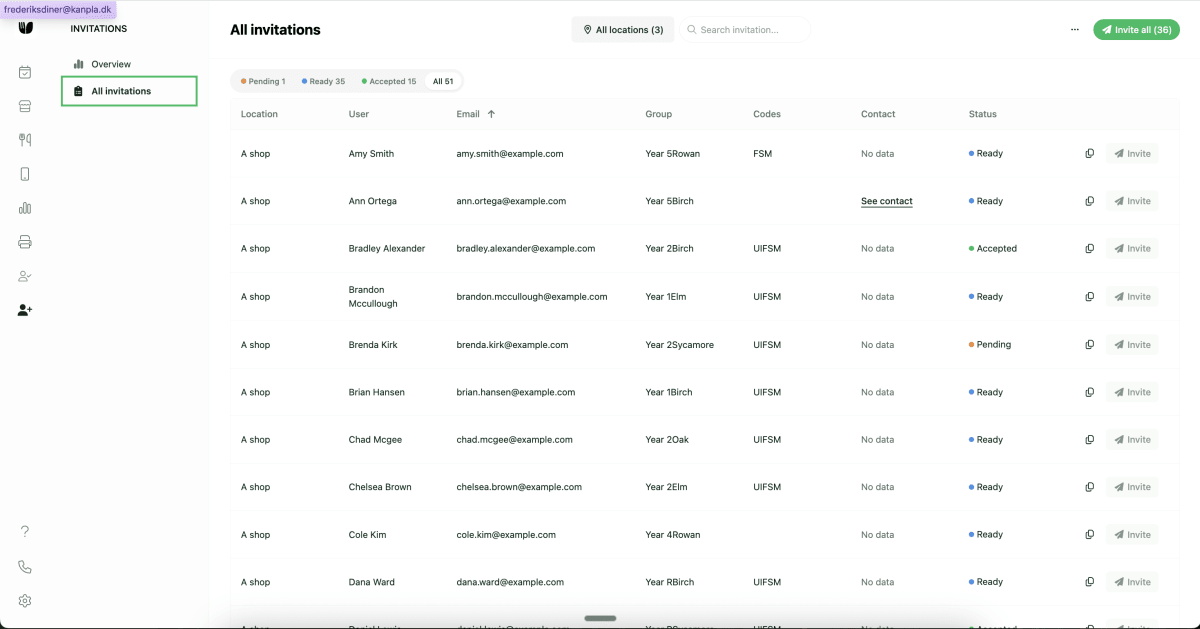
We have launched a new Invitations page that includes an Overview of all invitations per location and All Invitations.

Why does it matter

Admin users at caterers using the Invitations feature, are in need of getting an easy overview of the data per location in order to track progress of sign-ups/uptake. For school caterers, especially data completeness before sending out the invitations is important, so that all childres and parents can be reached.

What’s new?

Invitations is now split into two pages:

  1. Overview : This provides admin users insights into the status of invitations per location

  2. All Invitations: This provides admin users the full list of invitations and allows them to deliver invitations via email or link

    1. Note: No functionality has been changed compared to the old page.

Note: These new pages are currently requiring a feature flag to be enabled. It is active for the following customers IFG, Cleverchefs, ABM, Glanmore and for demo purposes on Testing Kanpla.

How to use it?

Overview

Open the navigation bar, go to Invitations > select Overview.

How to navigate and use the table

  • Users can sort each column by clicking the arrows next to the column label

  • Users can search location names

  • Users can change the number of rows shown in the table at the bottom of the table and navigate between pages of the table

Explanation of different columns:

  • Location: This is the name of the location

  • Total: This is the total number of invitations (i.e. children) that are imported and available at the location. Note: This number will change over time as new invitations are added

  • Invited: This is the total number of children that were invited; i.e. an email was sent to the email available

  • Accepted: This is the total number of invitations that were accepted, i.e. an actual user/child has been created for the child in invitations.

  • Sign Up Rate: The ratio of accepted invitations divided by the total number of invitations available at the school. Note: We currently do not have support to remove invitations when a child leaves the school

  • Missing Class: This indicates the number of invitations/children that are missing data for their user group/class

  • Missing Email: This indicated the number of invitations/children that are missing data for their email.

  • Data Completeness: The percentage of invitations/children out of the total where all required data is available. If a invitation/child is missing either user group/class or email this will reduce the data completeness.

All Invitations

Open the navigation bar, go to Invitations > select All Invitations.

By default admin users will see all invitations for all location in this list.

What has changed?

  • The functionality to export the invitations as CSV can be accessed from the menu-icon next to the Invite all button

How to navigate and use the page

  • Users can filter by location using the location filter above the table

  • Users can search invitations by names and emails

  • Users can filter by invitation status by clicking Not sent, Sent, Accepted or All above the table

  • Users can filter the columns Group and Codes

Short description

New column for Last Sent is made available in the table on the All Invitations page. It indicates the date an invitations was last sent.

Why does it matter

Improved visibility for admin users when a child has been invited in order to prove to customers that the invitation has been sent on a certain date.

What’s new?

New column for Last Sent is made available in the table on the All Invitations page. It indicates the date an invitations was last sent.

How to use it?

Go to Inviations > All Invitations and view the column Last Sent.

New Feature
Admin
Reporting

Short description

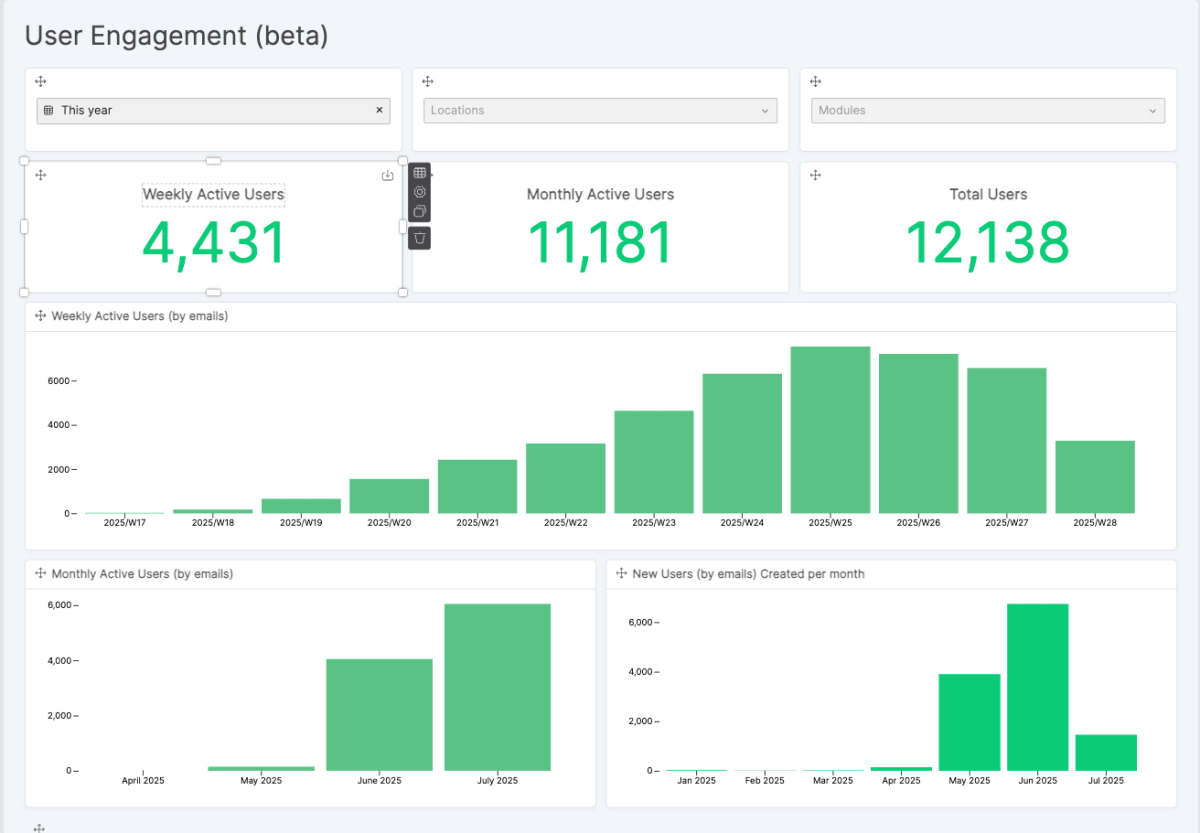
All partner have access to the new User Engagement dashboard. The user engagement dashboard provides admin users insights in the activity of their users in the app.

Why does it matter

Customer and admin users are interested in the engagement and performance of their deployed Sales and Loyalty Apps. In order to enable admin users to evaluate engagement of their customers in their locations, this dashboard provides them insights into common metrics for measuring user engagement.

What’s new?

The User Engagement dashboard in Statistics provides insights into different common engagement metrics about the Sales & Loyalty App usage.

Metrics provided

  • Active Users: An active user is defined as a user that performs any action in the app during a specified period (month, week, day). An action can for example be viewing a module or placing an order.

    • By default we provide insights into Weekly Active Users (WAU) and Monthly Active Users (MAU).

  • Total Users: The total number of unique users created.

  • Breakdowns of

    • Weekly Active Users per week

    • Monthly Active Users per month

    • New Users created per month

  • Page Visits: A page visit is tracked when a user views any page/module in the app

  • Breakdown of

    • Total Page Visits per week

    • Page Visits and count of Active Users per module

    • Count of Active Days per user

    • Count of Active Users per location

How to use it?

Go to Statistics > find User Engagement. You can use the filters on the dashboard as with any other embedded Luzmo dashboard.

Note: The top three widgets cannot be filtered as we are providing standardised metrics for WAU and MAUs as well as Total Users.

Admin
Reporting
Enhancement

Short description

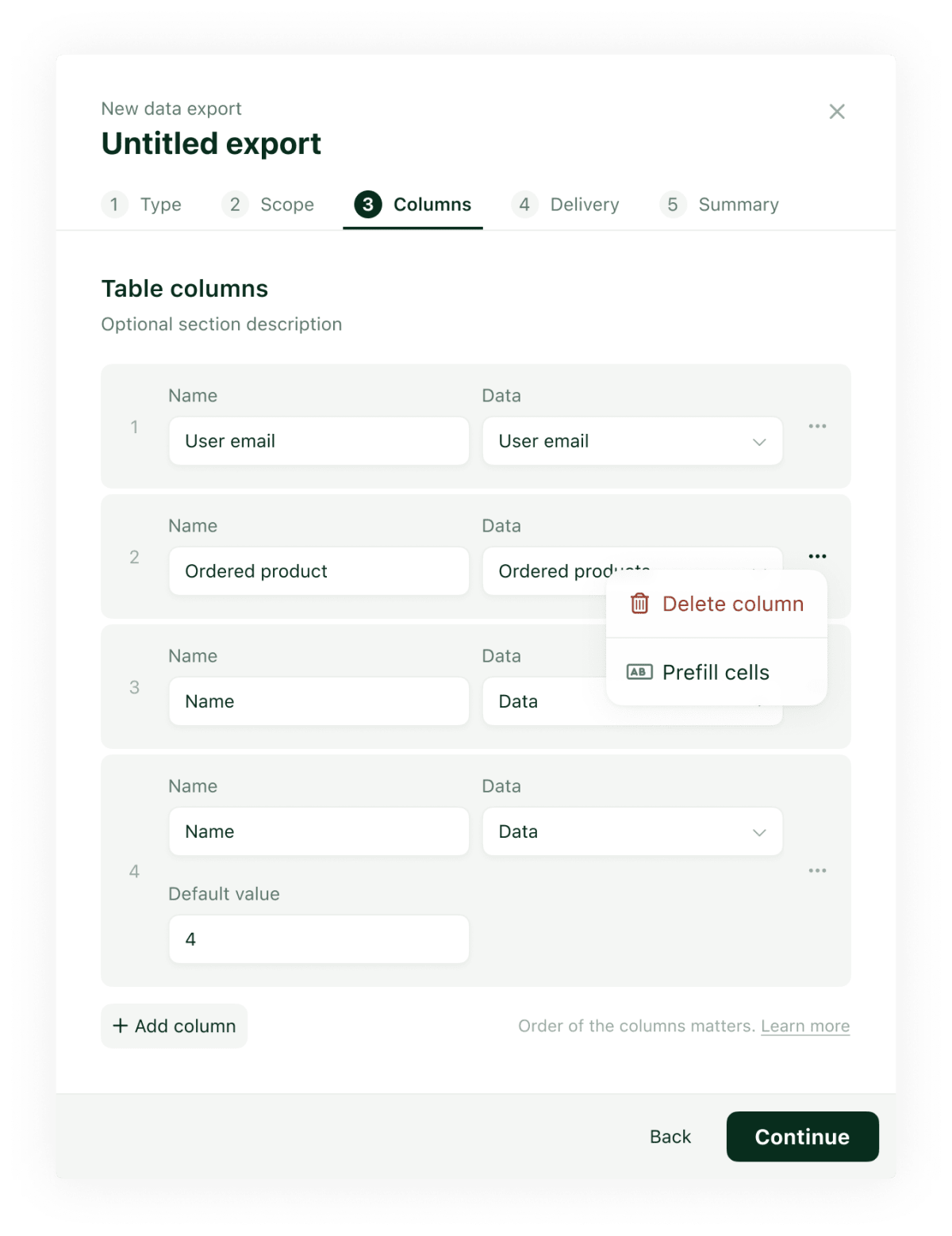
Admin users can add Empty Columns to their exports in Data Export.

Why does it matter

For reporting purposes, admin users require files to come in a certain format. This format may require that a custom column is added to the export.

What’s new?

When selecting columns for the export file, admin users can selecte Empty Column to add a custom column to their report.

The column Empty Column can be found at the top of the dropdown.

How to use it?

Go to Data Export > Create a new export > Navigate to Columns > Add an Empty Column.

Short description

Admin users can set a default value for Empty Columns in Data Export that automatically populates the cells in the column.

Why does it matter

For reporting purposes, admin users require files to come in a certain format. This format may require that a custom column is added to the report and the cells for that column are set using a default value.

What’s new?

When adding an Empty Column , admin users can use the menu icon on the righ to Prefill Cells. Adding the option to prefill the cells, will add a input field to the column that the user can populate.

Note: If the user wants to add a default value for the cells, the name for the Empty Column is required.

How to use it?

Go to Data Export > Create a new export > Navigate to Columns > Add an Empty Column > Click Menu icon > Select Prefill Cells.

Short description

We've launched a new feature in the Kanpla Admin homescreen tool, a shortcuts builder, allowing caterers to easily set up direct links to the app's most pertinent features and workflows for their users. This update also includes enhancements to the user interface and user experience for all standard system actions initiated by the shortcuts.

Why does it matter

The Kanpla app should be part of a users daily workflow, whether they are using it in the office or at home for a child. This feature aims to reduce time to task and percived effort for key jobs to be done, such as topping up your balance, accessing support or checking your order history by reducing the number of clicks required by up to 75%.

What’s new?

  • Balance Shortcut: with improved auto top-up UX and copy

  • Orders Shortcut: Keepiung the same component for now, with improvements coming in the future

  • Support Shortcut: Creating a clear decision for users between technical and food related support in simple more “human” language

  • QR Code Shortcut: Smoother loading and an improved UI

  • Module Shortcut: A new feature which takes the module icon with a custom name

How to use it?

Go to Admin > App > Home Screen > Toggle on Shortcuts, then enable and customise the shortcuts as you wish. Reccomended set-ups as follows:

Schools:

  • Balance

  • Orders

  • Support

B&I:

  • QR Code - if POS is used

  • Orders

  • Support

  • Key module redirect named after the most purchased product category “Coffee” or “Breakfast” or “lunch” as oposed to the nav bar which might state “restaurant”

Jul 04, 2025


Short description

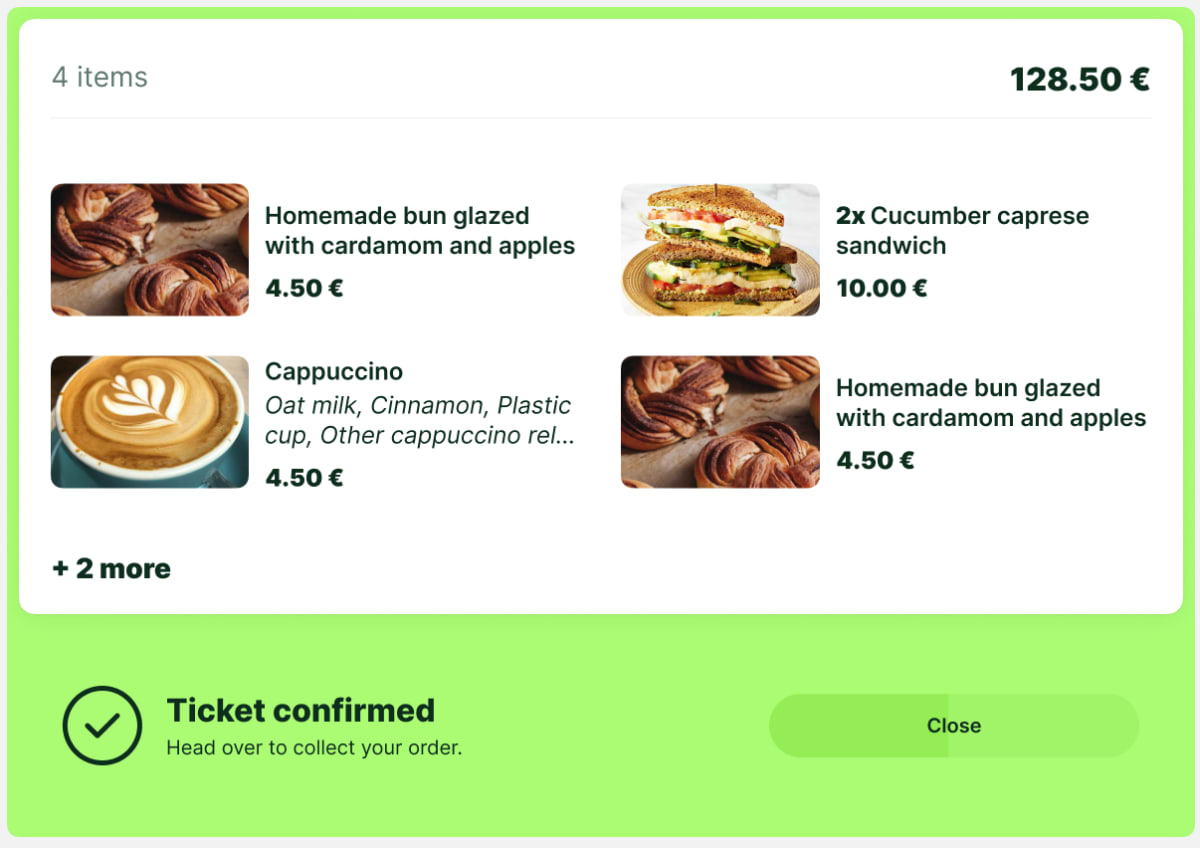
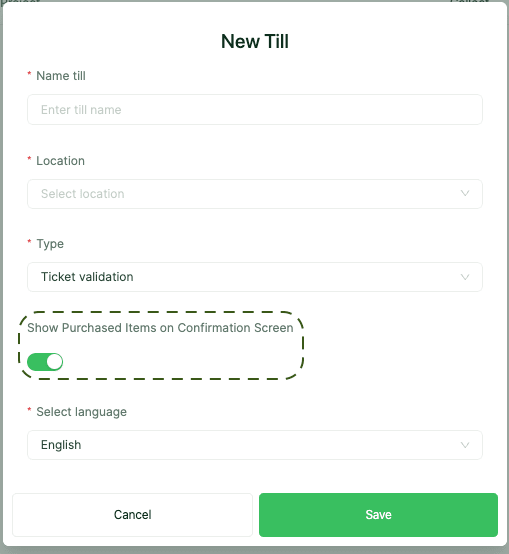
We’ve introduced a new setting for Ticket Validation tills that allows operators to view the purchased items directly on the confirmation screen. This makes it easier to ensure that the right order is being handed out—smoothly and confidently.

Why does it matter

When fulfilling pre-purchased meals or orders, it’s important that operators can quickly verify what was bought. This update gives them a clear view of the basket contents, helping them serve or confirm the right items with speed and certainty.

What’s new?

  • New setting to show purchased items on the confirmation screen for Ticket Validation tills

  • Allows operators to match digital orders with what’s in hand more easily

  • Available only for Ticket Validation till type

How to use it?

Go to Admin Panel > POS Module > Tills > Till settings or New till > Till type > Ticket Validation, then enable the toggle: "Show purchased items on Confirmation Screen".

Short description

This release offers up a new UX for stampcards which is more intuative for customers in our omni-channel setup, and consistent with other products in the Kanpla line up - along with a ton of fixes under the hood to ensure stamps are earned, redeemed and consumed correctly and consistently wherever customers decide to shop.

Why does it matter

For a long time now we have had challenges with stampcards. From the way discounts were created, to the way diuscounts were redeemed and the unintuative UX for customers - it has caused a lot of support traffic and blocked international launches.

What’s new?

  • Tweaked Stampcard UI: Whislt the MVP might not win a design contest, we have waived goodbye to the claim reward button as this wa causing users without an app ordering flow to loose all thier stamps into the ether! You can now see that you have a reward available on the card, with a counter for both pending and available rewards.

  • Reward Offer: If you enter a module where you have a reward available, scan your QR code on a kiosk or POS the experince will be consistent “Reward available, do you want to redeem it now?”

  • Reward Claimed: Once the reward is taken, you are promprted to add the products with a reward icon to your basket with a consistent UI regardless of which sales channel you are using.

  • No More Refresh Button: The cumbersome manual refresh button has been replaced with an automated background refresh - simple!

  • Pending Reward State: No more wondering when if your stamps actually worked! If you earn a reward on a module with a deadline, you will see this in your stash as a pending reward with a prompt for when it will become vaild. So sit back, eat that croissant and know your free product is on the way.

Short description

Dynamic cards introduce a personalised, context aware banner system to the home screen which aims to make the most visible part of the app show the most relevant information at the moment it is needed.

What’s new?

  • Upcoming Orders Card: A card which displays any upcoming orders for today and tomorrow for CPU, School and Hospitality customers

  • Order Status Card: A set of 3 cards, one for each order status on the KDS - Incoming, Preparing, Ready to Collect - Featuring the collection time, order ID and collection/delivery location

  • Ticket Card: A minified version of a Kanpla registration ticket, ready to be shown or scanned directly from the home screen

How to use it?

Admin Setup Process

  1. Head to the home screen builder in admin.kanpla.io

  2. Find the spotlight section, and select the cards tab

  3. You will see the options available based on the modules you have live (no registration modules, no ticket card option!)

  4. Toggle on the cards you want to use

  5. Save

App Results

  1. Head to the app and place an order for hospitality or flex, click anc collect or for a ticket

  2. Head to the home screen to see your cards layerd like a deck of cards

  3. Swipe between them to view the cards available

  4. Move the order on the KDS or scan the lunch ticket to see the card change state

  5. Click a card to be redirected to the information about the order

Short description

Data Key is now a required field in Text Inputs preparing for better UX in Data Export and other places.

Why it matters?

In order to lay the foundation for more scalable analytics and reporting and to leverage data keys in Text Inputs for Data Export all text inputs require a data key.

What’s new?

When creating a new Text Input for any module, users must now select a data key.

How to use it?

Go to Settings > Module > Plugin, then navigate to the plugin Text Input.

When creating a new Text Input or editing an existing one, users must now set a data key.


Noteworthy comments

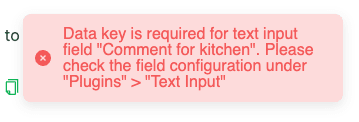
If a Text Input without a data key exists on a module, users will not be able to edit a module and save until they have also updated the data key for all Text Inputs missing a data key.

Users will be informed about this with an pop up message at the bottom of the screen like this:

Short description

Most common columns are now selected by default for all export types when creating a new export in Data Export.

Why it matters?

Configuring an export can take a long time and users are not always aware what columns to pick. Showing a selected set of default columns in the Columns step will fasten the process for the user to create a new export.

What’s new?

For each export type a set of columns are selected by default.

Overview of default columns

Sales - One Row per Order

  • Order ID

  • Billing Date

  • Order or Refund

  • Total Sales excl. VAT

  • Total Sales incl. VAT

  • Total VAT

  • Location Name

  • Module Name

  • Total Number of Products

  • Product Names

Sales - One Row per Product

  • Order ID

  • Billing Date

  • Order or Refund

  • Line Type

  • Total Sales excl. VAT

  • Total Sales incl. VAT

  • Total VAT

  • Location Name

  • Module Name

  • Product Amount

  • Product Name

Transactions

  • id

  • created_at

  • type

  • amount

  • fee

  • net_amount

  • currency

  • school_name

How to use it?

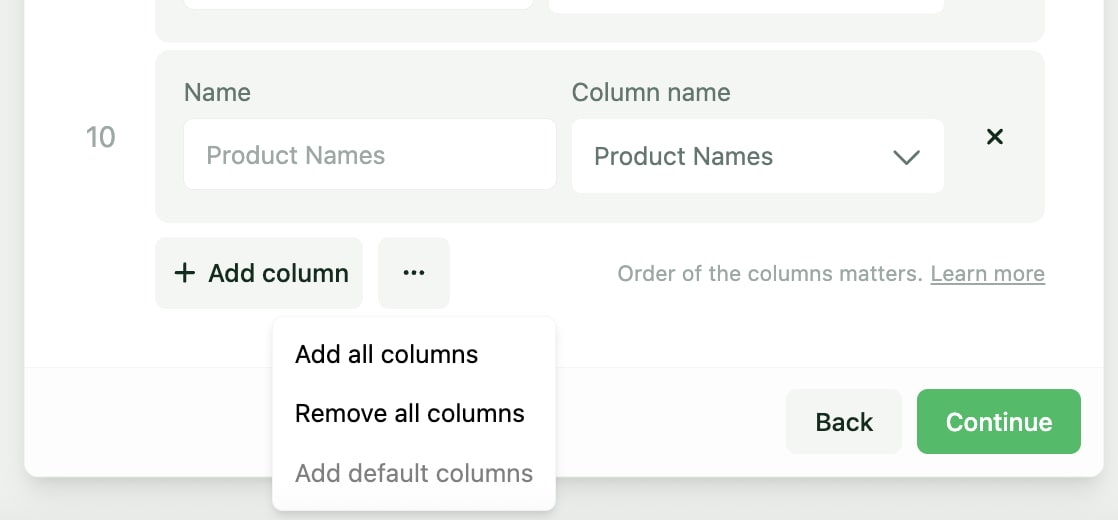
The columns above are selected by default. The user can add or remove columns as they need.

Using the icon at the bottom of the select columns, the user can also restore the default columns at any time.

Short description

Users can now search column names/labels in Data Export.

Why it matters?

Navigating and scrolling many columns can be tedious task and frustrating when users quickly want to setup a Data Export

What’s new?

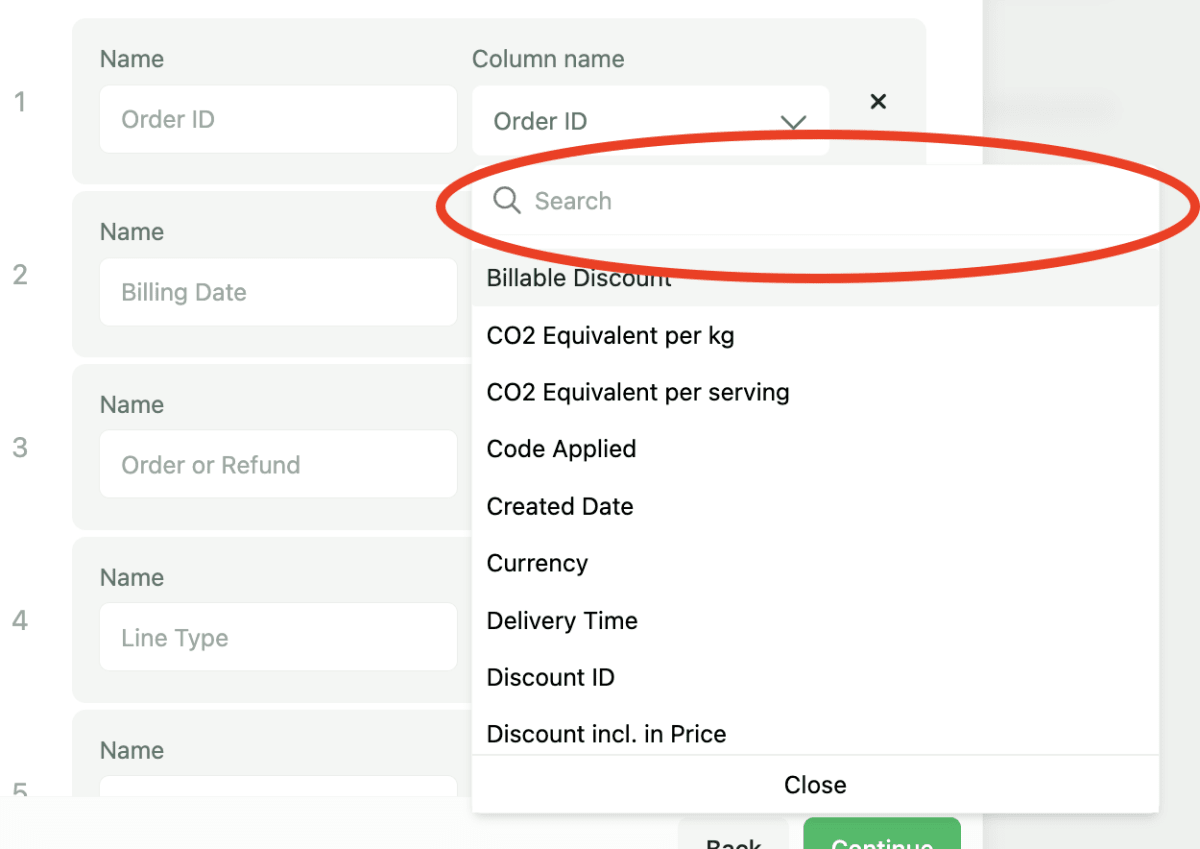
Search functionality is available for the columns. Users are able to search for any column they want to add

How to use it?

Go to Statistics > Data Export > create a new export and navigate to Columns. When selecting a column, users can now use the search to find what they are looking for.

Bug Fix
Admin
Reporting
Enhancement

Short description

Custom location filter was removed and Luzmo location filter added to all dashboards.

Why it matters?

The custom Kanpla-filter for locations did not work well with the default filters on the Luzmo dashboard and impacted the performance of the embedded dashboards. It caused other filters to reset when used.

What’s new?

Users can now find the location filter with the other filters on each dashboard. This impacts primarily the Sales Overview and Transaction Overview.

How to use it?

Go to Statistics > Sales Overview and use the Location fi


Noteworthy comments

The location filter will only show locations for which orders or transactionto exist for the selected period or date.

Short description

Location name included in Invitations CSV export

Why it matters?

When exporting data for multile locations, users could not identify the location the invitation belonged to.

What’s new?

The location name is now present as a column in the CSV export of invitations from the All Invitations page.

How to use it?

Go to Invitations > Select a location/school and export the CSV.

June 20, 2025

Short description

To better support high-volume locations, we’ve introduced a new ticket layout view and made a few upgrades to speed and clarity in the order view. Additionally, we’ve refined the overall design and UI across the app.

Why it matters?

Busy kitchens and counters need speed and clarity. The new grid view makes it easier to spot urgent orders fast, while pagination improves performance when there’s a long queue.

What’s new?

  1. New grid view ticket option - comes with Pagination to handle large ticket loads smoothly

  2. Visual update to highlight overdue orders more clearly

  3. App-wide UI polish for improved look and feel

How to use it?

Go to KDS > Settings > Display, then select between the two available options.

Short description

The Kanpla KDS is now available on iOS. You can download it directly from the App Store.

Why it matters?

Kitchens that might be using iOS devices, can now run KDS without needing to switch platforms.

What’s new?

  • Kanpla KDS app is now available on iOS

  • Supports all existing KDS features

How to use it?

Go to the App Store, search for Kanpla KDS, and install.

Short description

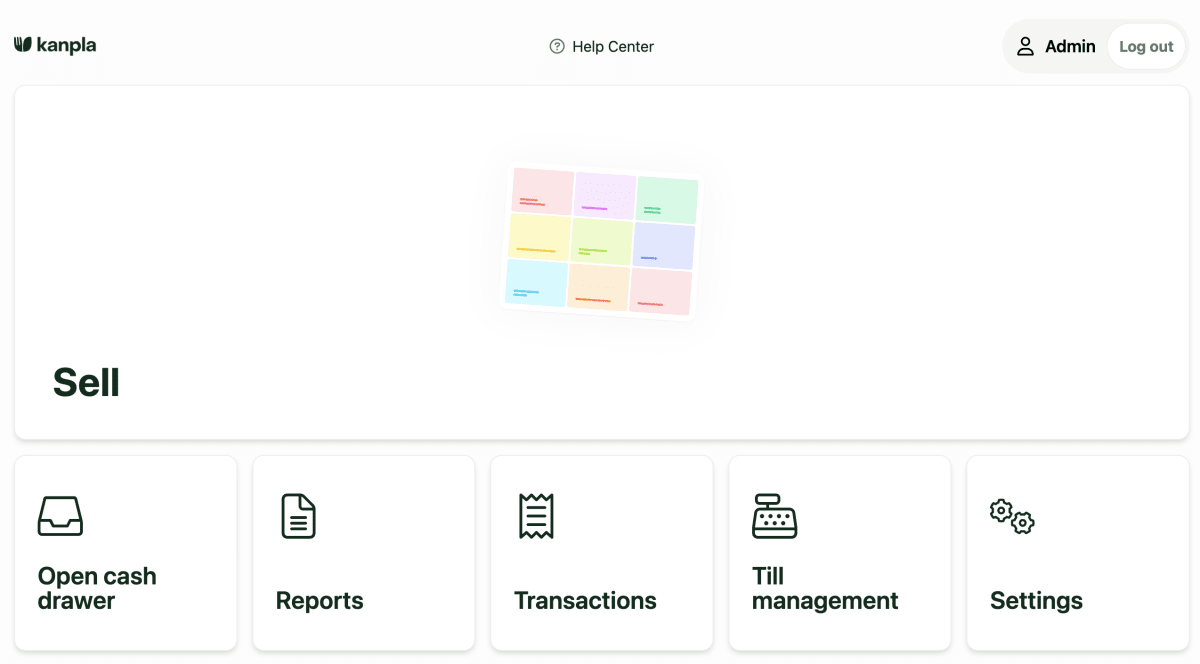
We’ve refreshed the POS homepage with a new UI. It’s cleaner, more consistent, and sets the foundation for future improvements.

What’s new?

  • Updated layout with improved visual hierarchy

  • Refined button styles, spacing, and typography

  • Consistent design language across all homepage elements

Short description

Following the kiosk testing at client locations with large quantities of products and poor network speeds, we concluded that the continuous scroll of the kiosk sell page was supoptimal and cased excesive load times on product images.

What’s new?

  1. A new category header with buttons

  2. Category loading (one category at a time when selected)

  3. Upgraded performance for product/image loading

Before & After

The End Result:


The Builder:

The Settings:

Tutorial:

Coming soon!

Description

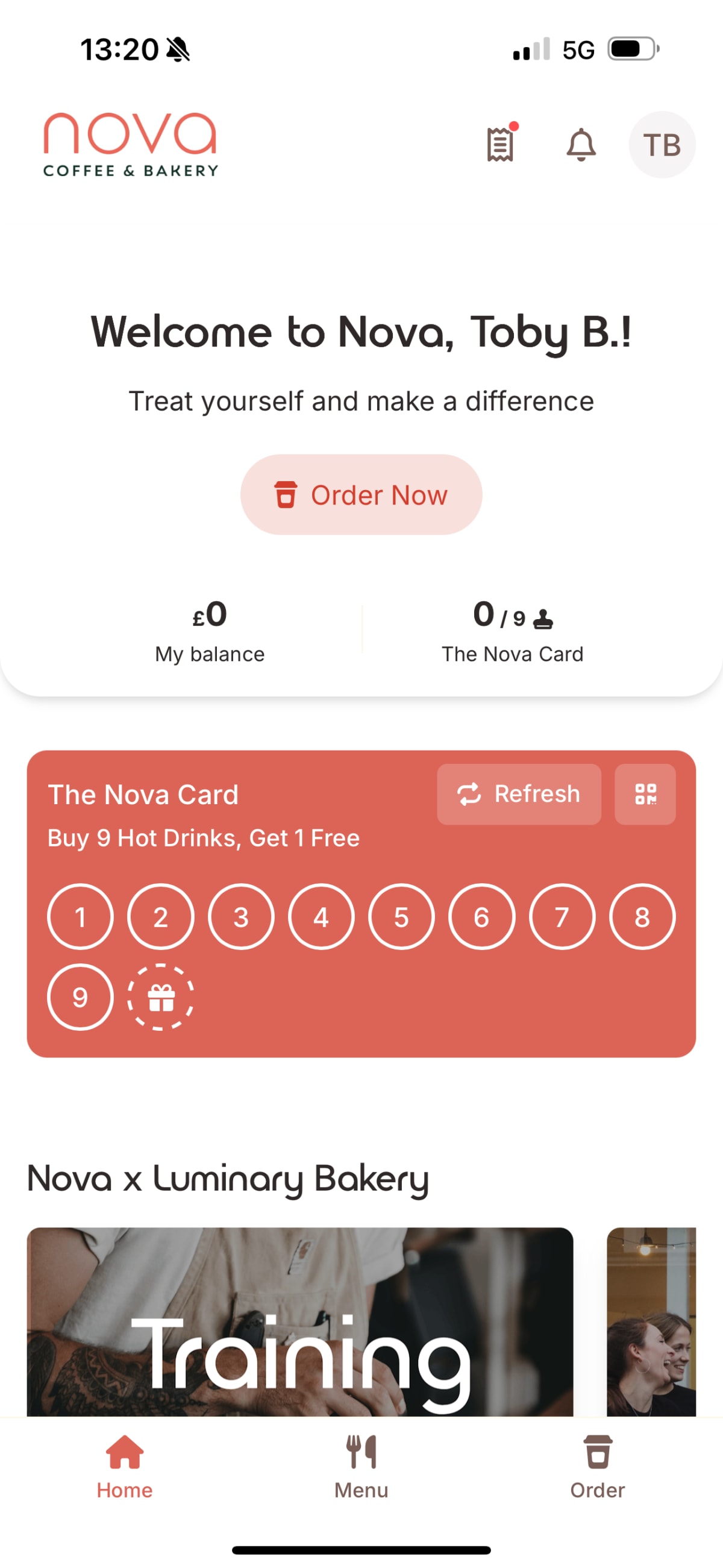
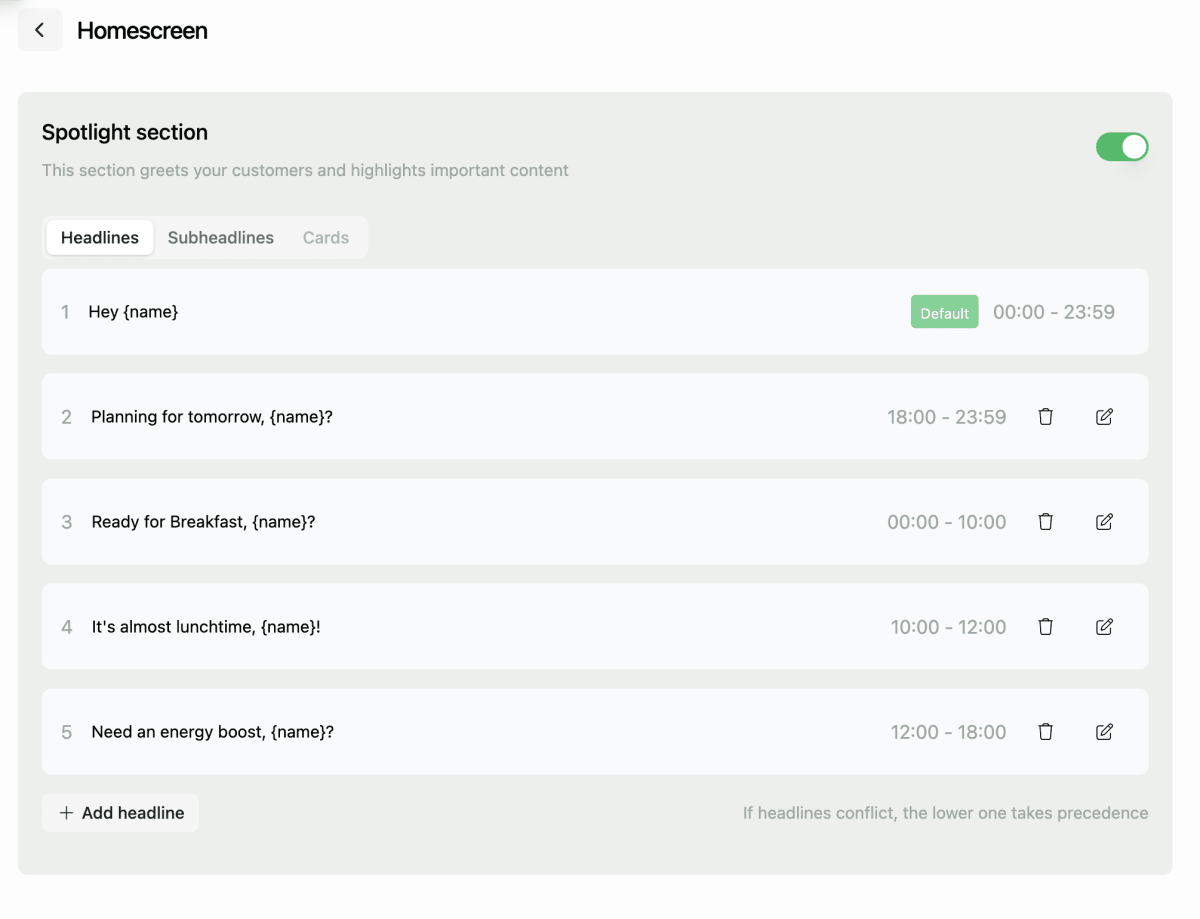
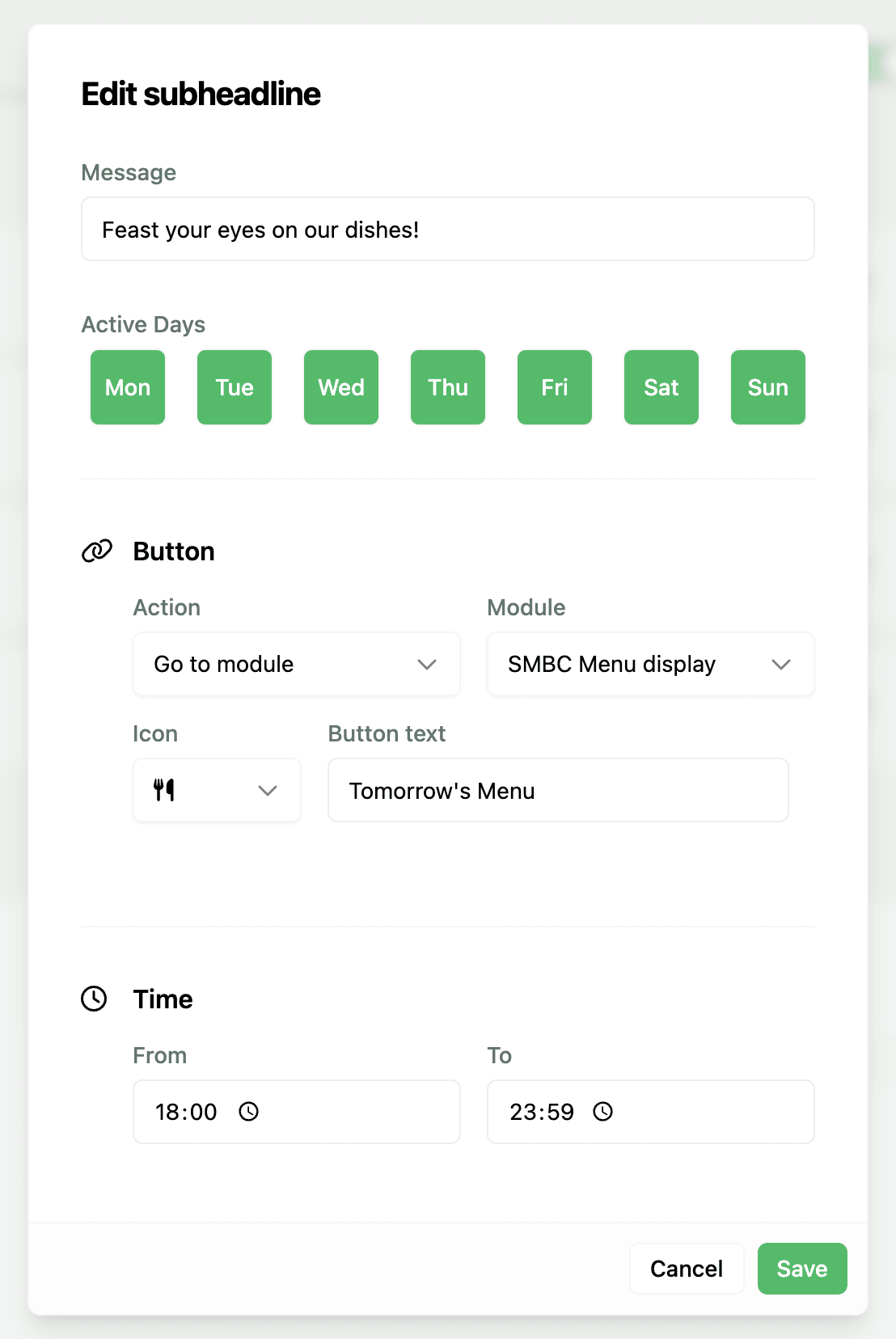
Introducing the Spotlight Section, a new homescreen header featuing a time-sensitive personalised greeting, message and action with key stats display to increase convenience and personalition for users whilst driving traffic to target modules for caterers.

Why does it matter?

The home screen is Kanpla’s most widly deployed module, and the module which sees the most traffic. Despite this, caterers were restricted to fairly static and generic content, with the header often containing a simple image or standard banner. We have transformed this “premium” app realestate to provide a more engaging personalised welcome which drives users to the most relevant pruchases or actions for that time of day.

What’s new?

A new home screen header - you’ll see this at the top of any new home screen switched on by default with some default states pre-populated. It will also appear for any existing home screens, but will be switched off by defualt. If enabling it, ensure you remove any existing static banners as this will get pushed below it.

  • Headlines: A personalised title using the dynamic text field {name} e.g. Good to see you, {name}!

  • Sub-headlines: A message which sits below the headline e.g. Working from the office tomorrow?

  • Actions: A button featuring text and a choice of icon which redirects to a specific module e.g. Skip the queue

  • Key Stats: Loaylty card and balance displayed front and centre for easy access e.g. 6/9 stamps


Noteworthy comments

We will shortly be releasing Cards for the follwoing use cases which will slot into the Spotlight Section when certain contextual conditions are met:

  • Upcoming Orders: Showing your order for today and/or tomorrow

  • Order Status: A live tracker of click & collect order sttus

  • Lunch tickets: Show or scan your lunch ticket directly from the home screen

Short Description

The upgraded transactions page features optimised loading to cut queue times whilst making it easier for operators to find orders with a new search function, and faster to print or email receipts whilat performing other actions through the use of toasts.

Why does it matter?

  • The existing page was increasingly latant

  • The print dialouge was taking up to 20s to complete, blocking operators from transacting until complete

  • Finding orders to produce receipts or provide refunds was incredibly manual and required exentsive scrolling

What’s new?

  • Unintrusive toasts for email receipt send-success confirmation

  • Unintrusive toasts for receipt printing

  • Unintrusive toasts for refund confirmation

  • Search function based on order ID, cashier name, products purchased or value of the transaction

  • Improved loading to improve speed of service for operators and cut queues

Short description

The green confirmation screen was adding a visual disruption and addtional clicks for operators in high volume environments slowing down queues and frustrating customers. This new device setting allows users to continue scanning or selecting products with no interruption and no loss of functionality.

What’s new?

  • Skip recceipt page (device setting and admin till config setting)

  • In-basket confirmation and option to print or send a receipt

  • The ability to continue interacting with the device by scanning a product, identiying a user or selecting an item without dismissing the green confirmation screen

How to use it?

  1. Head to the device settings

  2. Enable “skip receipt page”

  3. Alternatively, head to admin and enable the setting from module > tills > till config.

Short description

Users of the kiosk were frustrated by the inability to start a session by scannign their app or a barcoded product and were unsure at which point in the process they could be idetnified. This is now a thing of the past - introducing Scan to Start!

Why does it matter?

This release solves 2 issues:
1. Users were unaware that they could scan thier app on the kiosk

  1. Users were unaable to start a purchase (session) by scanning thier app or a barcoded product

What’s new?

  • An updated Kanpla Kiosk design with prompts to scan your app on both the home screen and product page header

  • A personalised greeting for users of kiosks with dining options

  • The ability to start a session by scanning a barcoded product or user QR code on kiosks without dining options

Short description

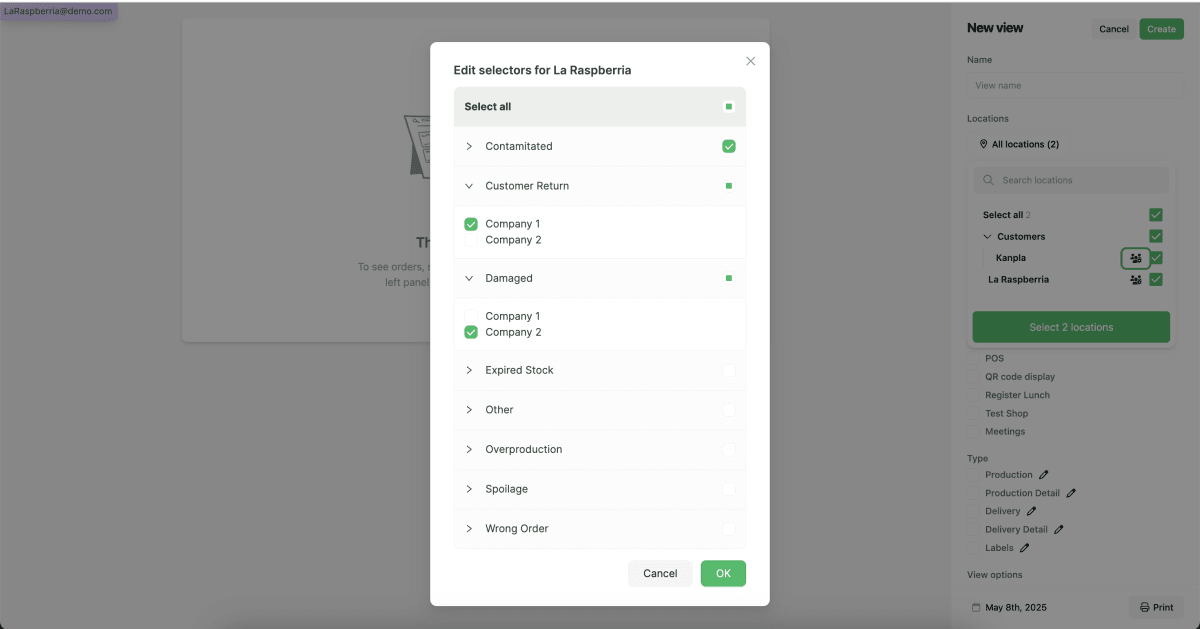
We enhaced the UI for picking selectors aross all filters for Locations where Selectors can be set. The enhancement makes it easier to select groups or individual selectors making the filtering for Selectors more user friendly.

Why does it matter?

Filterering for Selectors in the locations filter could be a tedious process when many groups and individual selectors where present at a location. Also, it was not easy to understand and see what groups and selectors where set for the filter.

What’s new?

Admin users now experience an improved UI when setting Selectors in the location filter.

See an example of the new UI below.

How to use it?

Navigate to any Location filter. If selectors are setup on a location/salesplace, admin users are able to open up the modal in the screenshot above by clicking on the people-icon next to the location name.

On the pop-up modal, admin users can now select either a whole selector group and/or individual selectors.

When done, do not forget to confirm by clicking “OK” and save the locations.

Short description

Admin users can now create prints for user groups on locations/salesplaces by filtering locations using Selectors.

What’s new?

The Location filter in Print was improved by enabling the option to filter by Selectors.

When a Selector is set in the filter, the print will only show and print orders and data for the selected group of users.

How to use it?

  1. Go to Print

  2. Create a new print

  3. Navigate to theLocations filter on the right

  4. If Selectors are setup, admin users can filter for user groups on the location

Short description

New custom dashbaord available for UK School caterers. This dashboard can be added on demand for selected customers.

Why does it matter?

UK School Caterers are interested in knowing the conversion rates for students in governmental student database. The new custom dashboard provides them immediate insights into the following conversion rates.

Conversion Rates of interest

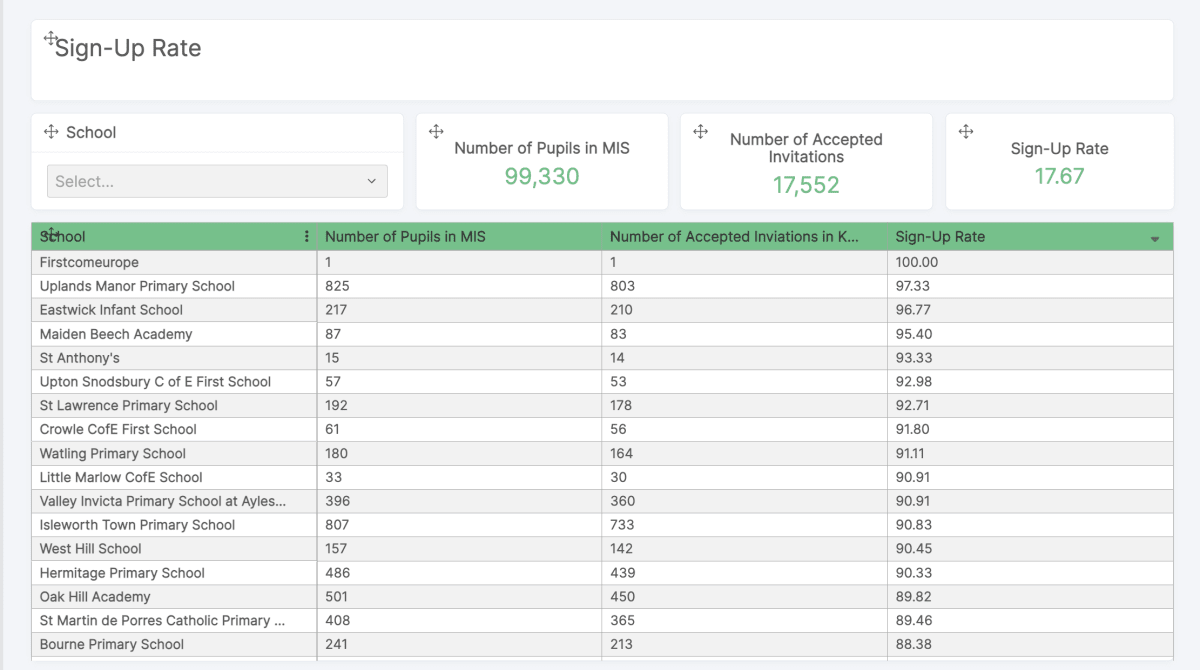
  • Sign-Up Rate: The Sign-Up Rate refers to the total number of student that signed up after receiving and invitation to Kanpla because they exist in the student database

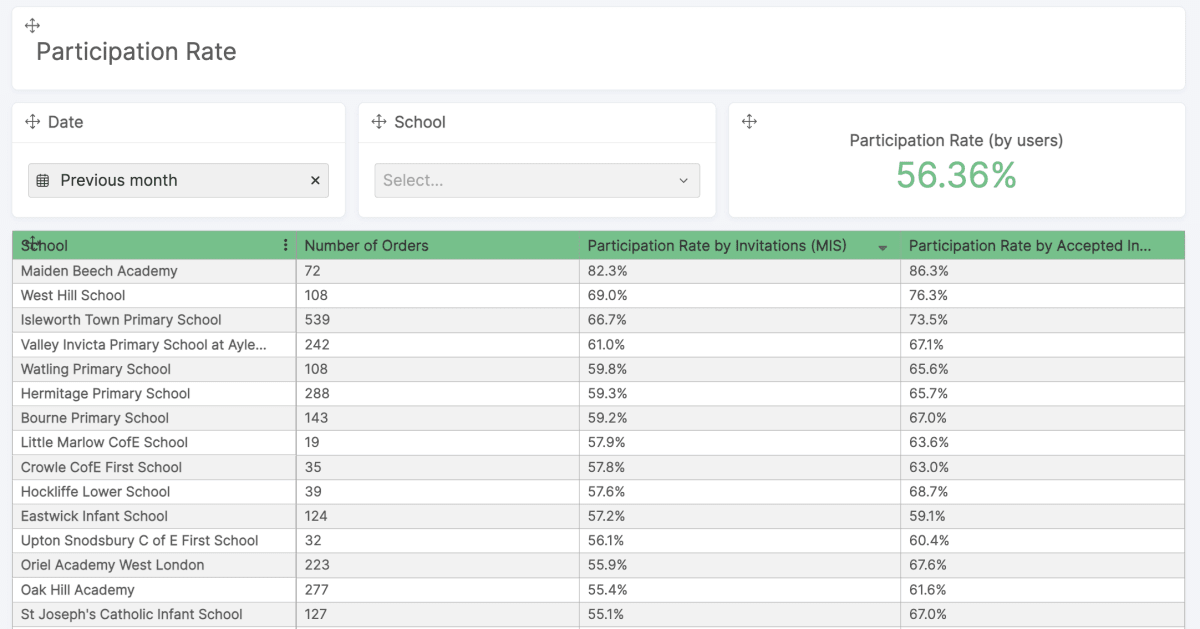
  • Participation Rate: The Participation Rate refers to the students placing orders.

What’s new?

We have setup a custom dashboard in Luzmo that calculates Sign-up Rates and Participation Rates for UK School Caterers.

This custum dashboard can be added for all UK School Caterers on request. It is available for Impact Food Group (IFG) and Cleverchefs in Statistics already.

How to use it?

If the custom dashboard is added for the customer, admin users will be able to find it in the Statistics sidebar.

Sign-Up Rate

The first section of the dashboard provides insights into the overall sign-up rates and per school sign-up rate.

Participation Rate

The second part of the dashboard provides insights into the participation rate of the schools comparing to the students database and the signed up students.


Noteworthy comments

If you want your customers to get access to this dashboard, please reach out to Max.

New Feature
Hospitality
Admin
Room Booking

Short description

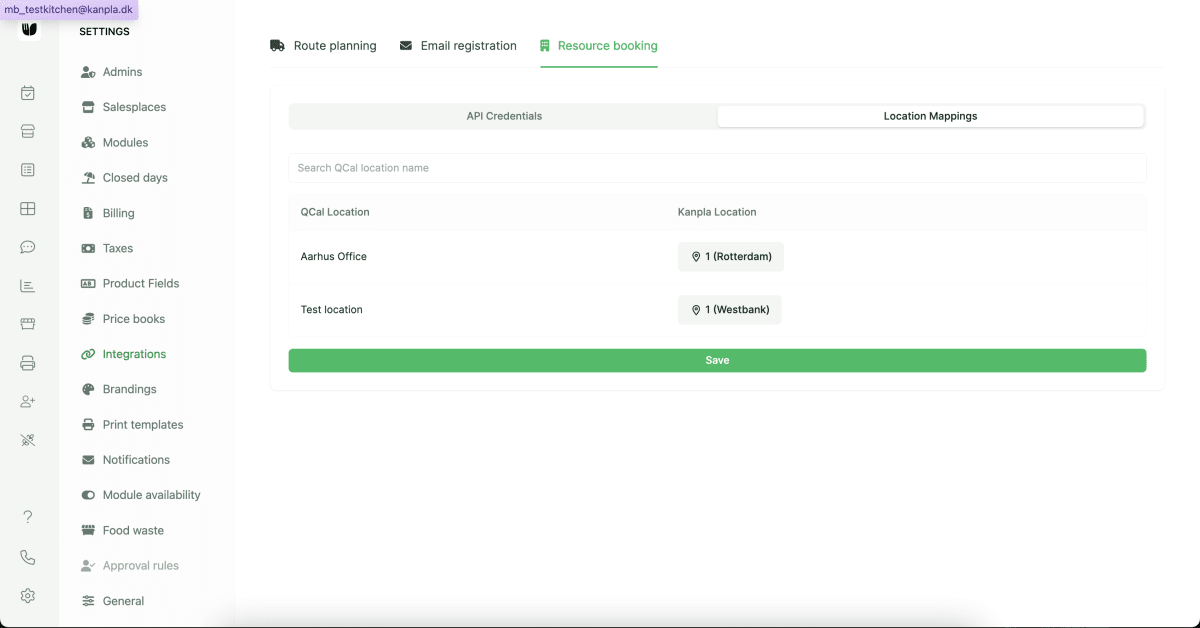
Admin users can now link their QCal locations to Kanpla location/salesplaces in order to manage what resources and rooms the end-users of the App get access to.

Why does it matter?

For Room Booking, we have integrated with Nordic Screen's QCal. This integration requires our customers and the admin users to manage their locations and rooms/resources in QCal.

In order for users of the App to only get access to the resources and rooms that are relevant for them, admin users need to have the option to link locations in QCal to locations/salesplaces in Kanpla.

Definitions

  • QCal Location: A location in QCal represents a collection of resources and rooms. That means it refers to for example a building or a site where resources and meeting rooms are located.

  • Kanpla Location/Salesplace: A location in Kanpla represents a site, where our customers provide their services. For example an office building a school etc..

What’s new?

Admin users can now link locations available in QCal to locations and selectors in Kanpla.

How to use it?

Availability

Resource Booking is available as a pro plugin and must be enabled for customers in Kanpla Superadmin.

How does it work?

Navigate to Integrations in Settings. Before you can create a Location Mapping it is necessary that you setup the integration by adding the API credentials for the partner. See here for more info.

Once the API connection is in place, admin users can

  1. Go to Location Mappings

  2. View an overview of all QCal Locations on the left side

  3. Add mapping of Kanpla Locations and/or Selectors on the right

  4. Make sure to save any changes


Noteworthy comments

Important: If no location mapping is setup, the end-user will not be able to get any resources in the frontend app.

Short description

We have given our optons and choices picker component a brush up in the app creating a builder process with a neat selection summary.

Why does it matter?

  • For customers with a hugh number of options and choices (e.g. Glanmore) or customers with products such as “build your own salad”, our previous UX/UI required a lot of scrolling and made it unlear how many different options were available.

  • For customers with a leow number of options and choices, it was unclear both when adding to basket, but also when re-ordering, which choices had been made.

What’s new?

  1. Default open state for the majority of customers (<20 combined choices)

  1. Default builder state for custoemrs with lots of options and choices (>20 combined choices)

  1. Edit basket & re-order sumamary state (when choices have been made or saved)


Noteworthy comments

We are currently tweaking the logic and expect to have some small improvements out later today (01/05)

Short description

Presenting prep-times and timeslot capacity, two features enabling caterers to define the preparation time required for an item and limit the quantity of items they can prepare for each collection slot. This ensures the team isn't overwhelmed and allows customers to select a feasible collection time.

Why does it matter?

Please explain briefly why our customers and users should care about this change. Be clear on the reasons and rationale for implementing the feature, making the changes.

What’s new?

Prep-times:

Capacity Limits:

ASAP (but smater):

How to use it?

  1. Create a Meal Plan Module

  2. Enable Delviery & Collection Times

  3. Setup Prep-times

  4. Setup Capacity limits

  5. Toggle on ASAP

  6. Place an order and test it out with the KDS


Noteworthy comments

It is really important to support customers in enabling this feature. It has the power to prevent the team being overloaded, but it also has the potential to frustrate customers if the limits are set too low or the prep-times are unrealistically long. In my expereince, setting the limits and prep-times to be slightly ambitious, usually gives protection whilst still keeping service flowing fast.

Short description

A new device setup setting for the attended POS which triggers the dining option to be reset between transactions.

Why does it matter?

Customers rely on the dining option selection to apply the correct VAT rate to their orders. Feedback suggested that operators were leaving the Attended POS on the same dinign option all day, which was prompting questions from the Tax authority and enterprise HQ - so we created a setting to resolve this!

What’s new?

  • Toggle on devices on the device setup under Dining Options, to resent the dining option after every transaction


Noteworthy comments

  • This behaviour is already present in the Self-Attened and Kiosk types

  • This will need to be setup per-device

We are excited to announce the launch of the Kanpla Kiosk, designed to deliver a seamless, self-service ordering flow at client locations. Built for larger screens and optimised for user interaction, the Kiosk enhances end-user experience and client enablement.

🌟 Key Features:

  • Splash Screen & Tap to Begin: A welcoming, intuitive entry point guiding users into the ordering process - with white-label customisation of logo and colours coming soon.

  • Dining Option Selection: Allows users to choose between dining options directly from the kiosk.

  • Product Overview & Category Navigation: Users can browse a clean, organised menu, exploring products by category with ease.

  • Product Cards & Detailed Modals: Rich product information including images, descriptions, tags (e.g., popular, organic) and allergens - with CO2 data, and nutritional highlights coming soon.

  • Customisation & Variants: Users can select product variants with quantity control and view price adjustments in real time.

  • Customer Identification via In-App QR Code: Seamless integration with user accounts to unlock hybrid billing, balance payments and loyalty earn/redeem.

  • Loyalty Indicators: Clear visual cues on which products earn stamps and which are redeemable as rewards through the creation of a “Available Rewards” category.

  • User Profile Details: Once identified, users see their username and balance in the Kiosk UI, they will also receive a receipt in the app and if the kiosk has a KDS connected to it, they will receive notifications as thier order progresses through the preparation stages.

  • Start Again Function: A quick reset option to clear all selections and begin a new order and log out the user.

  • Basket Overview: Showing selected items, with real-time updates on points earned and rewards applied.

  • Order Details Input: Users can enter their name, any special requests to personalise their order and admins can include addtional text inputs as required, users can also change the dining option here.

  • Timeout Handling: After 20 seconds of inactivity, users are prompted with an “Are you there?” screen, auto-resetting after 10 seconds to ensure smooth kiosk flow.

How to set it up:

  1. Create a POS Module or select an existing one

  2. Add a new till - selecting type “kiosk”

  3. Add products to the module and dining options as usual

  4. Take a compatable device (ELO I-series 4 22in, 27in, Qiox Ally, Friend, or Buddy, Samsung A9 Ultra +, or ELO z10/z30 in protrait orientation)

  5. Go to device settigns > display > advanced > screen density and adjust this from 240 to 160 DPI

  6. Download and launch the Kanpla POS app

  7. Sign-in and operate as usual

  8. To return to the settings menu from the kiosk, simply tap in the top left corner 3 times from any page

This MVP focuses on delivering a robust, engaging, and efficient ordering experience while laying the groundwork for future enhancements.

Short description

Updates to time display accuracy and introduction of time of order on order detail modal.

Why does it matter?

For customers with longer time slot intervals e.g. 30 mins the current whole hour rounding was casing operational challenges as an order due between 1hr and 1hr 59m in the future was dispalyed as 1hr.

Meanwhile, operators investigating missed, late or erronious orders were reqesting addtional information about the order to be available to the team operating the KDS to help with the triage and resolution of customer queries.

What’s new?

  • Time on order cards is now shown accurately in hours and minutes with a real-time minute-by-minute count down.

  • The order detail modal will now show the exact time an order was placed.

Short description

Click & Deliver enables caterers to configure a module for delivery to customer. This could be table service or meeting rooms for real-time ordering from a QR code/app or in-room tablet.

Why does it matter?

The current click and collect ticket stipulates a collection point and collection time which doesnt make sense in a context where our customers are delivering the products to thier guests - either in a meeting room or at a table.

What’s new?

  • KMS plugin settings for Delviery or Collection

  • Preparation point name (previously salesplace name) to provide a more accurate description for both Click & Collect and Click & Deliver customers

  • Notification settings based on KDS order status

  • Updates to the KDS ticket UI in the app based on whether the module is set to delivery or colelction

How to use it?

  • Enable the KDS plugin

  • Choose delivery or colelction

  • Name your preparation point

  • Adjust your delivery and collection availability, time intervals, prep-times and capacity

  • Enable or disable ASAP (up to you!)

  • Add an optional text input for room or table number if using the app as the ordering channel

Short description

Enjoy it again is a configuration of the products home screen section which enables customers to view their recently ordered products in real-time and re-order them in just 3 taps with their prefernces (options and choices) saved from their last order.

Why does it matter?

We are trying to create the most frictionless experince possible for our users, to drive app uptake and ultimately increase sales for our customers. This feature aims to reduce the time and effort required to order frequently purchased items such as lunch tickets.

What’s new?

  • A new setting for “enjoy it again” on the products home screen section

  • Recently ordered products will show here in stacked format up to the capacity set in the home screen builder

  • The section will only appear on the home screen once the first order has been placed since it was created

  • Products will be show individually rather than in groups i.e. if 3 products were ordered together, they would show as 3 individual items in the re-order block

  • Choices made at the last point of order will be saved on both the product and at the basket level

How to use it?

  1. Head to the home screen builder in admin.kanpla.io

  2. Add a products section to your home screen

  3. Configure it in the settings to “enjoy it again”

  4. Set a maximum number of products to display (reccomended 4 for locations with predominantly mobile app use and 8 for predominantly desktop)

  5. Save

  6. Head to the app and place an order

  7. Reload the app and this product will appear for quick re-order

  8. Tap the product (1) which will take you to the module and open the product with your previous choices saved

  9. Tap add (2) which will trigger the basket with your prefernces saved

  10. Tap pay (3)

As easy as “tap, tap, pay”

Bugs and improvements

  • New Feature
    New Product
    KDS
    Introducing Kanpla KDS

You will now receive a notification when you order is marked as complete on the KMS 📨

Why does it matter?

The real value of click & collect is being able to “wait elsewhere”. We arent saying you get you product immediately, we are saying you can carry on with your day until its ready to collect. We will now send you a notification when your order is moved to “ready” status on the KMS, removing the need to open the app and module to check on the progress of your order.

How to use it?

  1. Place an order on a mealplan express order set up with the KMS module plugin enabled

  2. When the order is dragged into the “ready” column the notification will be triggered

  3. Tap on the notification and you will be taken directly to the collection ticket within the module

  4. Alernatively, head to the notification centre where you will find a button on the notification linking you straight to the collection ticket

New Feature
Flex Ordering

Flex users with allergies will nolonger see choices they are allergic to when looking at product options 👀

Why does it matter?

At Kanpla we want to provide the most personalised and streamlined experince we can to give end users better dining experinces and help caterers take more orders - everyone is a winner! With this feature customers will get a more personalised, decluttered view of the choices they can select on each option, removing the need for annoying pop-ups and warning messages - simple!

How to use it?

  1. Open a flexible subscription module

  2. Tick the module setting “block products for users with allergies”

  3. This setting will both block unsituable products and hide unsuitable choices from any options you have set up on the product

Worth noting

In the event that the user is allergic to all the choices on an option, a message will be shown, pulling the [name of the option] for added context, telling the user that there are no suitable choices for them based on thier allergies.

Short description

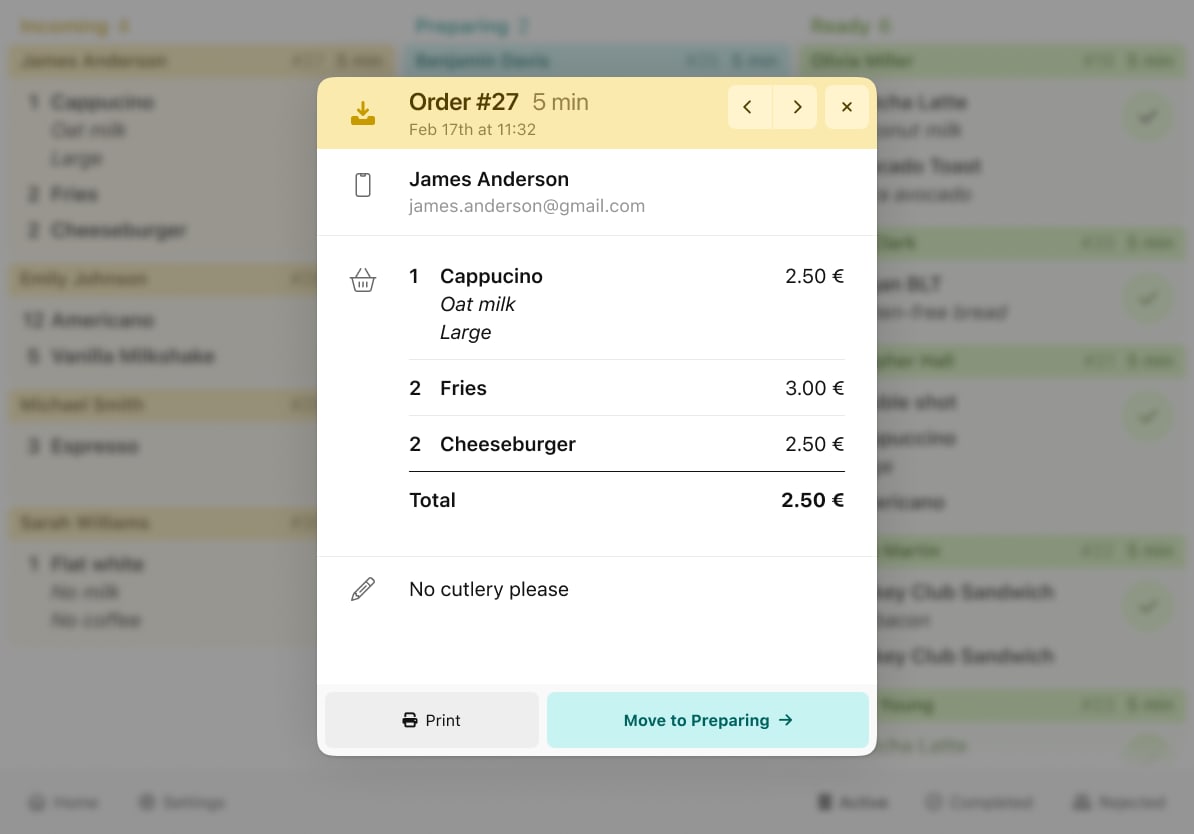
To allow busy canteens to track which items on a multi-product order have been completed on the KMS, operators can now strike through each item on the order detail when the order is in “preparing”.

How to use it?

  • Move and order to “preparing”

  • Tap on the individual product/order line

  • The line will be struckthrough, indicating it has been prepared to the other operators

  • Once all of the items are physically ready, move the order to “ready”

  • Doing so will remove the strikethrough allowing for good legibility when users are picking up orders

Other things to note

  • We will be enhancing this feature to enable operators to strikethrough from the order card on the main KMS screen in the next week or so - this requires the full app deployment 🤝 🚀

Short description

The second phase of this feature allows users to order thier favourites directly from the app home screen 💨 making the the products users 💘 easy to find and fast to order enhancing personalisation and improving the user experince!

What’s new?

  • Favourite products can now be displayed on the home screen for easy access when the admin configures a home screen product block and selected "favourites” in the configuration

  • If a user has not favourited any products, this block will not show on the home screen. Once the first product is added to favourites, it will appear

How to set it up

  1. Go to home screen

  2. Add a product block to your home screen

  3. Select “favourites” as the product display setting

  4. Select “stacked” as the direction setting

  5. Select “open the product in the module” as the on-click setting

Other things to note

  • We are planning to optimise the checkout flow in v3 to reduce the number of steps to checkout further

  • This is currently only available in Mealplan Express Order


Short description

The enhanced Data Export feature is now available to all partners. Allowing them to build, download and save Data Exports from their Kanpla Admin for their daily, weekly and monthly reporting.

Why does it matter?

Users require greater flexibility in extracting, customizing, and automating export of data to meet diverse business needs, including stakeholder-specific reporting. By improving the existing Data Export functionality with the option to save any configuration of periods, locations, modules and columns, admin users save time generating reports that they need on a daily, weekly or monthly basis.

What’s new?

The enhanced version of the Data Export allows users now to:

  1. Build a custom export file including custom columns, such as Text Inputs

  2. Download the configured Data Export immediately, or

  3. Save the configured Data Export for future use

  4. Download the file from the overview on demand

    1. File types include .csv and .xlsx

Note: There is no limitation in terms of number of cells, rows and columns. However, large files may take longer to download.

How to use it?

Availability

Data Export is available to all partners in Statistics.

How does it work?

  1. Click + in the top right corner

  2. Select the type of data export to download; Available export types include

    1. Sales – One Row Per Product
      Export detailed data on orders and refunds related to sales. Each row in the exported sheet represents a single product within an order. Customize your export to fit your specific reporting needs

    2. Sales - One Row Per Order
      Export detailed data on orders and refunds related to sales. Each row in the exported sheet represents a single order. Customize your export to fit your specific reporting needs.

    3. Transactions
      Export complete data on payments and payouts processed via your payment gateway for precise financial tracking.

  3. Filter what data the export should include

    1. Set the Period , e.g. last month, yesterday

    2. Select the Location(s)

    3. Select the Module(s)

  4. Select the columns that you need for your reporting

    1. Note: You can select single textInput per column here

    2. Note: You can search the columns by typing the first letter and the selector will jump to the letter in the list.

  5. Click save to add the data export configuration to the overview

    1. By clicking download, the user can export the file to their device immediately

  6. When saved, the data export appears in the data export overview and can be downloaded on demand at any time


Noteworthy comments

Coming your way soon…

New export type:

  1. Adyen Settlement Details Report – Reconciled
    Export Adyen's Settlement Details Report on payments and payouts processed via your payment gateway for financial reporting. Fees, payments and payouts are reconciled per location in the Summary tab.